|
Event
Tracking is an optional feature offered by Standard Conveyancer™
and is designed to help you keep track of requests made
to outside parties. Pre-closing
tracking covers title exam, municipal lien certificate (MLC)
and plot plan requests. Post-closing tracking covers mortgage
and equity line discharge requests.
Standard
Conveyancer™ automatically creates “tracking
items” (reminders that you are waiting for a response) as
you use the program. When you print your request letters
(TitleReq, MLCReq and PlanReq), the tracking system automatically
marks the items as ordered on the Requests and Scheduling
and Tracking Summary screens.
As
these items are received, mark them as received on either
screen or by clicking the icons in the main program window.
Standard
Conveyancer™ automatically adds post-closing
tracking items for mortgage discharges when you enter financial
information for mortgages or equity lines on the Payoff
screen. A tracking icon labeled “Discharge” will appear
in the main program window.
Pre-Closing
Tracking Items:
|
When
you print the request letters the tracking process begins.
A check mark appears in the Ordered field along w/the
date the letters were printed.
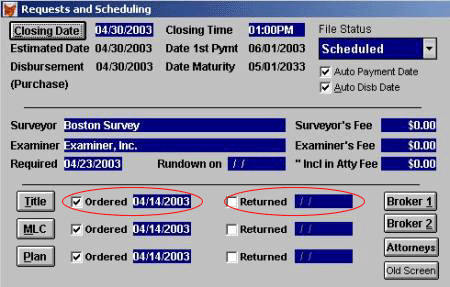
Receipt of the title, MLC and plot plan can be indicated
in the Requests and Scheduling window by entering
a check mark in the Returned field. The system will
automatically enter the current date.
|
|
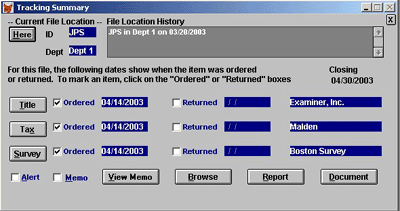
| Receipt
of tracking items can also be marked as returned in the Tracking
Summary window. |
Receipt
of the title, MLC and plot plan can be marked in the Tracking
Summary window by entering a check in the Returned
field. The system automatically enters the current date.
|
 |
The
printing of the request letters also prompts the pre-closing
tracking icons to appear on the Main Program window.
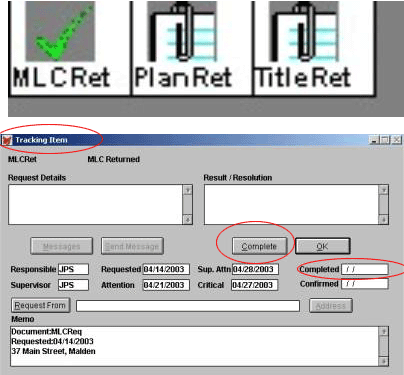
To indicate receipt of the pre-closing tracking items, click
the icon on the Main Program window. The Tracking
Item window opens. Click the Completed button
and the current date will appear in the Completed
field. The icon on the Main Program window will
display a green check mark.
|
 |
|
Post
Closing Tracking Items:
Event Tracking automatically
adds post-closing tracking items for mortgage discharges
when financial information for mortgages or an equity line
is entered in the Payoff window. Payoff information
entered for a First Mortgage, Second Mortgage, Other Mortgage
and Equity Line prompts Standard Conveyancer™
to begin the discharge tracking process. A discharge tracking
icon appears on the Main Program window and can be
marked as received by clicking the icon and clicking the
Complete button in the Tracking Item window.
Marking
Tracking Items as Received
To
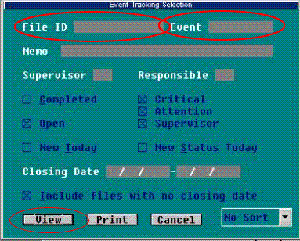
view a list of pre-closing and post closing tracking items
that have not been marked as received, click Info – Tracking
–Tracking Info and the Event Tracking Selection
window opens.
|
To
view all outstanding items for one file enter the File
ID and click View. The browse list will display
outstanding items for that one file.
To view all tracking items for all files click the View
button. (Do not enter information in the Event field).
The browse list will display all outstanding items for all
files.
To
view a specific tracking event for all files enter the
item name in the Event field and click view.
Example:
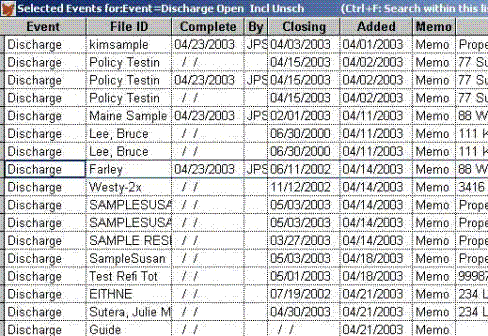
to display a list of outstanding discharges for all files,
type “discharge” in the Event. The browse list
(see next page) will display outstanding discharges for
all files.
|
NOTES:
To
view title exams, type TitleRet in the Event field.
To view MLCs type MLCRet in the Event field.
To view plot plans type PlanRet in the Event
field.
To view mortgage discharges, type Discharge in the
Event field.
|
|
To
display the browse list of outstanding discharges type,
“discharge” in the Event field, press the tab key
and click the View button. The easiest and quickest
way to indicate receipt of several mortgage discharges is
to:
1.
Select the discharge item and press Ctrl-S twice.
The current date will appear in the Complete column;
2.
Select the next discharge item and press Ctrl-S once.
The current date will appear in the Complete column.
Continue until all discharges are marked as received.
3.
Click the Escape key to exit the browse list and
return to the Event Tracking Selection window.
4.
Click the Cancel button to exit from the Event
Tracking Selection window.
|
 |
Items
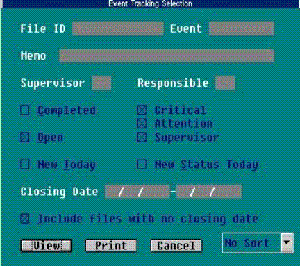
can also be tracked based on certain criteria. For example,
items can be tracked during a specified time period by
entering a date range in the Closing Date field.
To
do a search based on tracking items that have been received
and marked as received in Standard Conveyancer™
remove the “X” next to the Open field and enter
an “X”in the Completed field. Completed
indicates that the tracking item has been received and
has been marked as received in Standard Conveyancer™
The default setting in the Event Tracking Selection
window is set to Include Files with no closing date.
For a search that includes only files with a closing date
remove the “X’ next to this field.
|
|

